
Telenor Call Forwarding & Divert Codes 2026 – Activate, Deactivate & Fix Common Problems
Unlock complete control of your calls with the latest Telenor call forwarding codes 2026, simple, fast, and fully explained.
From activation to troubleshooting, this guide helps every Pakistani mobile user stay connected and protected.
“Call Forwarding” and “Call Divert” Are the Same Thing
If you’ve searched for both terms and landed here, confused about which one applies to you, relax. Telenor, like every operator in Pakistan, uses “call forwarding” and “call divert” interchangeably. Same codes, same settings menu, same service. The terminology difference comes from how phone manufacturers label the feature; Samsung and most Android skins call it “Call Forwarding,” while some older Nokia and Huawei menus used “Call Divert.”
This guide covers every code you’ll need: activating forwarding for different scenarios, cancelling it, checking whether it’s currently active, what it actually costs, and, importantly, a warning about how this exact feature is being misused in phone scams across Pakistan right now.
How Telenor Call Forwarding Actually Works
Before typing in any code, it helps to understand what’s happening on the network side. When you activate call forwarding, you’re not changing anything on your phone’s hardware; you’re sending an instruction to Telenor’s network telling it to reroute incoming calls to a different number under specific conditions.
There are four conditions Telenor supports, and each has its own code:
| Condition | What Triggers It | Common Use Case |
|---|---|---|
| Unconditional | Every single incoming call, no exceptions | Switching to a secondary number temporarily |
| Busy | Only when you’re already on another call | Avoiding missed calls during long conversations |
| No Answer | Only when you don’t pick up within a set time | Routing missed calls to voicemail or an assistant |
| Unreachable | Only when your phone is off or out of coverage | Covering dead zones or travel without roaming |
Most users only ever need the unconditional code, but the other three solve specific problems that unconditional forwarding can’t, more on that in the real-world scenarios section further down.
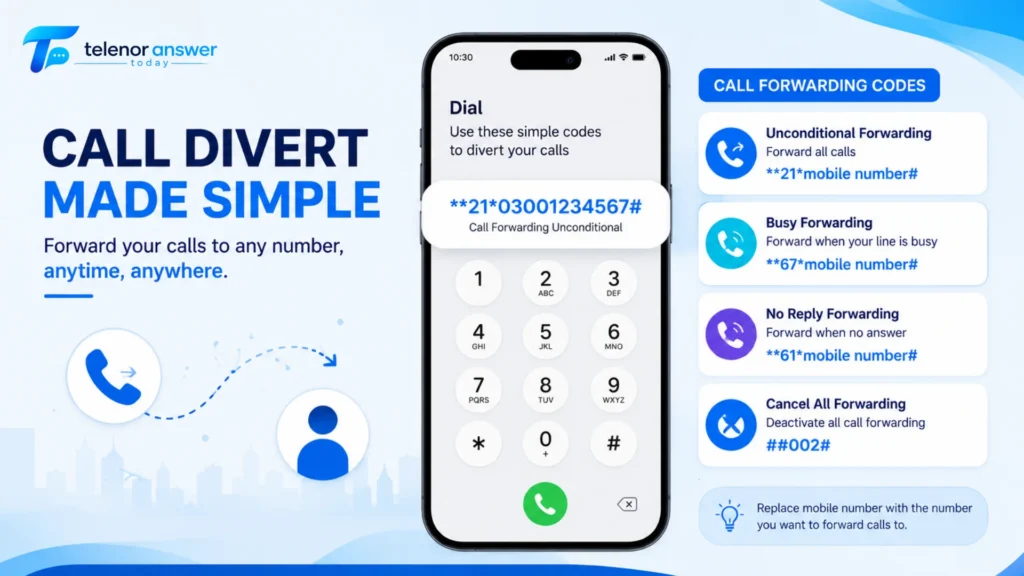
Telenor Call Forwarding Activation Codes 2026
These are the standard GSM MMI codes that work on Telenor prepaid and postpaid SIMs across any phone, Android, iPhone, or basic keypad devices.
| Forwarding Type | Activation Code | Example |
|---|---|---|
| Forward All Calls (Unconditional) | **21*[number]# | **21*03001234567# |
| Forward When Busy | **67*[number]# | **67*03001234567# |
| Forward When Unanswered | **61*[number]# | **61*03001234567# |
| Forward When Unreachable | **62*[number]# | **62*03001234567# |
Forward All Calls — **21*[number]#
This is what most people mean when they search “Telenor call forwarding code.” Dial the code with the destination number in place of [number], then press the call button. Every incoming call to your Telenor number, without exception, gets redirected to the number you entered.
A confirmation message appears on screen within a few seconds, confirming the service is active. If you don’t see this confirmation, the code likely didn’t register. Check your dialling format and try again.
Forward When Busy — **67*[number]#
This activates only when your line is engaged on another call. If you’re someone who frequently gets a second call while already talking, common for small business owners juggling customer calls, this prevents the second caller from hitting a busy tone and instead routes them somewhere useful, like a colleague’s number.
Forward When Unanswered — **61*[number]#
This triggers after a set number of rings go unanswered (Telenor’s default is typically 20-25 seconds). It’s the closest thing to a “missed call backup”; if you’re in a meeting and miss a call, it automatically tries a second number before giving up entirely.
Forward When Unreachable — **62*[number]#
This is the one most travellers and dual-SIM users actually need. It only activates when your phone is switched off, in aeroplane mode, or has zero signal. If you’re going somewhere with poor Telenor coverage but a good signal on a second SIM, this code ensures calls still reach you through that second number.
How to Deactivate Telenor Call Forwarding
Forgot you activated forwarding, and now calls are going to the wrong place? These codes cancel it immediately.
| Action | Deactivation Code |
|---|---|
| Cancel ALL forwarding types at once | ##002# |
| Cancel Unconditional only | ##21# |
| Cancel “When Busy” only | ##67# |
| Cancel “When Unanswered” only | ##61# |
| Cancel “When Unreachable” only | ##62# |
##002# is the one to remember. It wipes every active forwarding rule in one dial, useful if you’ve activated multiple types and aren’t sure which ones are still running. If you only want to remove one specific type while leaving others intact, use the individual codes instead.
A confirmation message will appear once deactivation is successful. If forwarding was never active to begin with, you’ll typically see a message indicating there was nothing to deactivate. This is normal and not an error.
How to Check If Call Forwarding Is Currently Active
This is the step almost every competing guide skips, and it’s often the most useful one. If you’re not sure whether forwarding is on, maybe a previous SIM owner set it up, or you activated something months ago and forgot, these codes show the current status without changing anything.
| Check Type | Status Code | What It Shows |
|---|---|---|
| Unconditional status | *#21# | Shows the number calls are forwarded to (if any) |
| Busy status | *#67# | Shows forwarding-when-busy status |
| No Answer status | *#61# | Shows forwarding-when-unanswered status |
| Unreachable status | *#62# | Shows forwarding-when-unreachable status |
Dial any of these and press call, your screen will display either “Not forwarded” or the active forwarding number along with the condition it’s set for. This is the fastest way to confirm a deactivation actually worked, or to catch forwarding that’s been silently running without your knowledge.
Setting Up Call Forwarding Through Phone Settings (No Codes Needed)
Codes work everywhere, but most smartphones let you manage forwarding visually, easier if you want to double-check settings or you’re not confident with USSD strings.
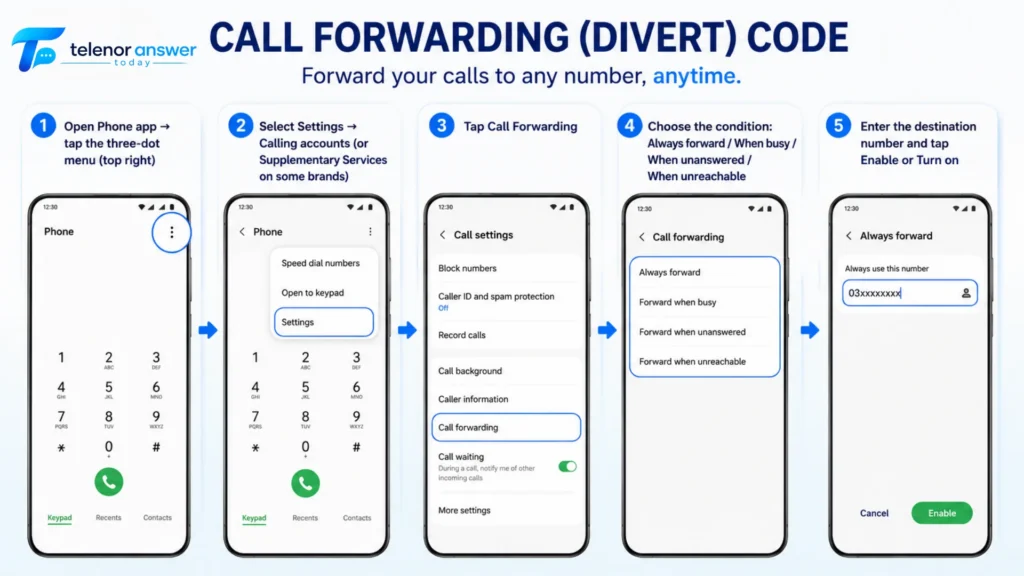
On Android (Samsung, Xiaomi, Vivo, Oppo, and most others)
- Open Phone app → tap the three-dot menu (top right)
- Select Settings → Calling accounts (or Supplementary Services on some brands)
- Tap Call Forwarding. Choose the condition: Always forward / When busy / When unanswered / When unreachable
- Enter the destination number and tap Enable or Turn on
On iPhone
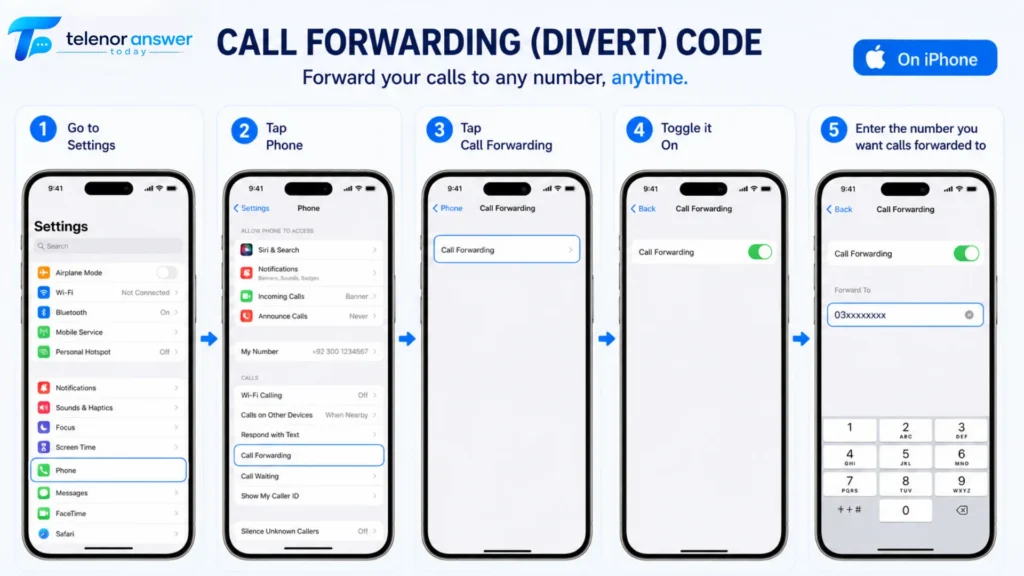
- Go to Settings → Phone
- Tap Call Forwarding
- Toggle it on
- Enter the number you want calls forwarded to
Important iPhone note: Apple’s iOS only exposes the unconditional forwarding toggle in Settings. The “Busy,” “No Answer,” and “Unreachable” conditional types are not available through the iPhone interface; for those, iPhone users must use the USSD codes (**67*, **61*, **62*) directly through the Phone dialer.
Does Telenor Call Forwarding Cost Money?
This is where most articles either go silent or give a vague “charges may apply” line. Here’s the actual breakdown.
Activating forwarding itself is free. Dialling **21*, **67*, **61*, or **62* doesn’t cost anything, and neither does deactivating or checking status.
The cost comes when a forwarded call connects. Once someone calls your Telenor number and it gets redirected, that connection is technically you placing a call from your SIM to the destination number, and standard call charges apply to that leg of the call. If you’ve forwarded to another Telenor number, on-net rates apply. If you’ve forwarded to a different network (Jazz, Zong, Ufone), off-net rates apply. If you’ve forwarded to an international number, international call rates apply, and these can add up fast.
Practical implication:
If you have an active call package with free Telenor minutes, forwarding to another Telenor number typically draws from that bundle. Forwarding to international numbers without an IDD package active will charge standard international rates per minute. This has caught people off guard with unexpectedly high balance deductions after a single day of forwarding to a relative abroad.
The fix:
If you’re forwarding calls long-term to a specific destination, check whether you have an appropriate call package or IDD bundle active that covers that destination. For domestic Telenor-to-Telenor forwarding, your existing on-net minutes generally apply.
If you want to keep an eye on what forwarding is costing you, the Telenor Balance Check Code guide covers every method for checking remaining credit, and the Telenor Balance Save Code guide has tips specifically for reducing balance drain from calls and data. Both are worth a quick look if you’re running forwarding to an off-net or international number regularly.
Call Forwarding vs. Call Barring — Why These Get Confused
If you searched for “Telenor incoming call unlock code” or “Telenor number off code,” there’s a good chance what you’re actually looking for isn’t call forwarding at all, it’s call barring, a related but separate GSM feature that gets mixed up with forwarding constantly because both involve “controlling calls” and both use similar star-pound code formats.
Here’s the distinction:
Call forwarding:
Redirects calls to another number. The call still connects, just somewhere else.
Call barring:
Blocks calls entirely, either outgoing calls you try to make or incoming calls you receive, based on rules you set.
| Feature | What It Does | Code Format |
|---|---|---|
| Bar all incoming calls | Blocks every incoming call | *35*[PIN]# |
| Remove incoming call bar (“unlock”) | Restores normal incoming calls | #35*[PIN]# |
| Bar incoming calls while roaming | Blocks calls only when abroad | *351*[PIN]# |
| Check barring status | Shows current barring rules | *#35# |
If your incoming calls suddenly stopped working and you’re searching for an “unlock code,” try #35*0000# (Telenor’s default barring PIN is often 0000 unless changed) to remove an incoming call bar that may have been accidentally activated, sometimes through a child’s phone, a previous owner’s settings, or an accidental settings tap.
On “turning your Telenor number off”:
There’s no single code that “switches off” a number while keeping the SIM active for data; that’s not how GSM networks function. What people usually mean when searching for this is one of three things:
- Temporarily blocking all incoming calls → use the call barring code above
- Diverting all calls elsewhere so your phone doesn’t ring → use **21*[number]# (unconditional forwarding).
- Fully suspending the SIM (for lost/stolen SIMs) → this requires contacting Telenor customer care at 345, as it’s an account-level action, not a code-based one
Real-World Scenarios — Which Forwarding Type Actually Solves Your Problem
Generic guides list the four codes and stop there. Here’s how people actually use them in practice.
Use unconditional forwarding on the old SIM, pointing to your temporary number. Every call reaches you regardless of what’s happening with the original phone.
Use “Forward When Busy” pointing to a colleague’s number. When you’re already on a call with one customer, the second caller gets routed to your colleague instead of hearing a busy tone — which feels far more professional than a missed call.
Use “Forward When Unreachable” pointing to the second SIM’s number. As soon as Telenor loses signal, calls automatically reach you on the other network — no manual switching required.
Use “Forward When Unanswered” pointing to that family member’s number. If you don’t pick up within the ring window, the call reaches them instead of going to voicemail.
Combine “Forward When Unreachable” with a WhatsApp-based callback arrangement — since the code only triggers when your phone has zero signal, switching your Telenor SIM off entirely while abroad activates this forwarding automatically, redirecting callers to a number where you’re reachable via data.